Wireless CarPlay/Android Auto Adaptor
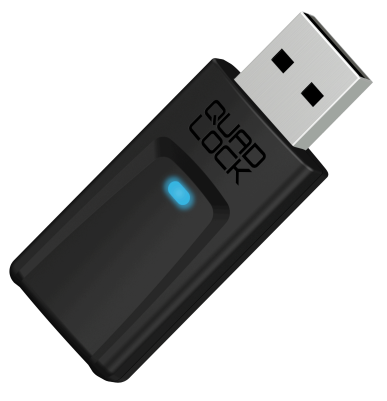
Go cord-free with the Quad Lock Wireless CarPlay/Android Auto Adaptor. Just plug it into your car’s USB port, pair your phone, and enjoy automatic connection every time you start your car. Access music, maps, calls, and messages without cables, and easily switch between paired phones via Bluetooth settings.
Tutorials
FAQ
Whats included?
- 1x - Wireless CarPlay / Android Auto Adaptor
- 1x - 90° USB Plug Adaptor (Type A to A)
- 1x - USB Plug Adaptor (Type A to C)
How does this product differ from the original CarPlay Adaptor?
- Supports Apple CarPlay and Android Auto users
- Simplified setup
- Faster boot time
- Smaller and lighter
- Direct plug into USB port, no cables required
- Included USB-A to USB-C and USB-A right angle adaptors
- Reduced voice and touch input delay
- Frequent firmware updates for improved compatibility and performance
What compatibility limitations does the Wireless CarPlay/Android Auto Adaptor have (car, infotainment system etc)?
- Vehicle must have a Wired Apple CarPlay or Android Auto connection
- Not compatible with Sony aftermarket head units
- Not compatible with BMW vehicles
Do I need to charge the Wireless Adaptor?
No, the Wireless Adaptor doesn’t have a battery. Power is drawn from the USB port to function.
How is the connection made between the Adaptor and a Phone?
The adaptor requires both Bluetooth and Wi-Fi to maintain a connection. The steps are as follows:
- User connects their phone to the adaptor via Bluetooth settings on their phone.
- The device then uses this Bluetooth connection to automatically connect the phone to the adaptor over Wi-Fi (Wi-Fi must be activated on the phone).
- The phone will automatically disconnect the Bluetooth connection and maintain connection over Wi-Fi. The Bluetooth showing as disconnected in the phone's settings is the correct function of the device.
If the phone is connected to the Adaptor over Wi-Fi, does this mean other Wi-Fi connections can't be used?
- Currently, this is a limitation for iPhone users. CarPlay requires the use of a Wi-Fi connection, and iPhone only supports one Wi-Fi connection at a time. While CarPlay is active, other functions—such as hotspotting other devices or connecting to in-car Wi-Fi—cannot be used.
- Some Android phones have the ability to maintain multiple Wi-Fi connections at the same time. Please consult your phone's manufacturer for further information on this.
Can I connect multiple devices to the same Adaptor?
You sure can!
To connect a new phone, you just need to pair the device via the Bluetooth settings on your phone by selecting the device in the list titled "QUAD-LOCK-####".
Once a phone has been connected once, it can take over the Bluetooth connection from another device at any time by simply selecting the QUAD LOCK product again from the phone's Bluetooth settings.
Assuming multiple phones have been paired to the adaptor, the last connected phone has priority and will connect automatically.
Does the Adaptor have a USB Port to charge from?
No, please use a dedicated USB charging port in your vehicle for phone or device charging.
Often, a vehicle's CarPlay / Android Auto USB port cannot provide enough power for charging. The task of powering the Wireless Charging Head is better suited to a 10W or higher USB output, such as those found on newer car dashboards, or from a cigarette lighter adaptor like our Dual USB Car Charger.
Why does the device show as disconnected right after connecting via Bluetooth in my Phone's Bluetooth settings?
This is a normal function of the Adaptor. The device makes the initial connection or "handshake" between the Phone and Adaptor via Bluetooth and uses this connection to tether the devices automatically over WiFi, where the connection will be maintained.
- Initial "handshake" = Bluetooth
- Maintained connection and data transfer = WiFi
My Bluetooth isn't Connecting/ My Infotainment is Frozen, What Should I Do?
We recommend the following steps in order to remedy this issue:
- Unplug adaptor from USB port for 5 seconds, then reinsert. If this does not remedy the issue or the issue returns, proceed to step 2.
- Reset device – with the device powered on, using a paperclip or similar, hold the reset button for 15 seconds and release. If issue continues, proceed to step 3.
- Firmware Update – See the relevant iPhone or Android firmware update sections for instructions for how to perform a firmware update.
If this doesn't resolve your issue please reach out to our Support team for further assistance here.
My Phone is Cutting In-and-Out as I Drive, What Can I Do?
We recommend the following steps in order to remedy this issue:
- Unplug adaptor from USB port for 5 seconds, then reinsert. If this does not remedy the issue or the issue returns, proceed to step 5.
- Reset device – with the device powered on, using a paperclip or similar, hold the reset button for 15 seconds and release. If issue continues, proceed to step 6.
- Firmware Update – See the relevant iPhone or Android firmware update sections for instructions for how to perform a firmware update.
If this doesn't resolve your issue please reach out to our Support team for further assistance here.
My Music/Phone Call is Delayed, Can I Fix This?
We recommend the following steps in order to remedy this issue:
- Unplug adaptor from USB port for 5 seconds, then reinsert. If this does not remedy the issue or the issue returns, proceed to step 2.
- Reset device – with the device powered on, using a paperclip or similar, hold the reset button for 15 seconds and release. If issue continues, proceed to step 3.
- Firmware Update – See the relevant iPhone or Android firmware update sections for instructions for how to perform a firmware update.
Firmware Update Instructions - iPhone Users
Note: We do not recommend updating the device firmware unless you are experiencing issues with your adaptor.
In order to update firmware, your phone must have a working mobile data connection (not Wi-Fi).
- On your phone, turn Bluetooth OFF.
- Connect the CarPlay Adaptor to a regular USB port (not a vehicle CarPlay/Android Auto USB port). Wait for the LED to start flashing GREEN before proceeding to the next step.
- On your phone, connect to the Wi-Fi network “QUAD-LOCK-####” (password: 88888888).
- Open your web browser and navigate to 192.168.1.101.
- Navigate to the “Update” page.
- Click the “Check Update” button. If a new firmware is available, it will be displayed.
- Click the “Update” button and confirm. The update process will take around 5 minutes – Do not allow your phone to go to sleep during this process.
- Once complete, the CarPlay Adaptor LED will turn solid WHITE, then begin flashing GREEN.
- Remove the CarPlay Adaptor from the regular USB port.
- Connect the CarPlay Adaptor to your vehicle's CarPlay/Android Auto USB port.
- On your phone, turn Bluetooth ON.
- Connect to Bluetooth device “QUAD-LOCK-####” if reconnection does not automatically occur.
Firmware Update Instructions - Android Auto Users
Note: We do not recommend updating the device firmware unless you are experiencing issues with your adaptor.
- On your phone, turn Bluetooth OFF.
- Connect the CarPlay Adaptor to a regular USB port (not a vehicle CarPlay/Android Auto USB port). Wait for the LED to start flashing GREEN.
- On your phone, connect to the Wi-Fi network “QUAD-LOCK-####” (password: 88888888).
- You may receive a notification that this network has no internet access, select stay connected to network if prompted.
- Open your web browser and navigate to 192.168.1.101.
- Open the “Settings” page.
- Select “Switch To P2P” - select OK - LED will turn solid RED.
- Navigate to your phone’s Wi-Fi Direct settings.
For phones running stock Android, this can be found via: Settings > Network and Internet > Internet > Network Preferences > Wi-Fi Direct.
For other Android phones, you may need to use the search function to find it. - Connect to “QUAD-LOCK-####” - ensure device is shown as connected.
- Open your web browser and navigate to 192.168.1.101 again.
- Open the “Update” page.
- Select “Check Update.”
- Click the “Update” button and confirm. The update process will take around 5 minutes – do not allow your phone to go to sleep during this process.
- Once complete, the CarPlay Adaptor LED will turn solid WHITE, then begin flashing GREEN.
- Remove the CarPlay Adaptor from the regular USB port.
- Connect the CarPlay Adaptor to your vehicle’s CarPlay/Android Auto USB port.
- On your phone, turn Bluetooth ON.
- Connect to Bluetooth device “QUAD-LOCK-####” if reconnection does not automatically occur.
Can I use the Wireless CarPlay/Android Auto Adaptor on my motorcycle?
Yes, but only if your motorcycle has an infotainment system with wired Apple CarPlay or Android Auto connection. The adaptor plugs straight into its CarPlay/Android Auto USB port.
Where is the reset button on the Wireless CarPlay/Android Auto Adaptor?
The reset button is located on the opposite side to the USB connector. It's a small opening and it requires a paper clip to press the button.
Visual steps can be found in the instructions manual.
How do I reset the Wireless CarPlay/Android Auto Adaptor?
With the adaptor plugged into a powered USB port, use a paperclip or similar to press and hold the reset button for 15 seconds, then release. A flashing blue light means the reset was successful.
Will it work with third-party CarPlay apps (e.g. Avenza Maps)?
The adaptor mirrors your phone's CarPlay/Android Auto session, so app support depends on CarPlay/Android Auto natively supported apps.
What language is the adaptor's interface in?
The adaptor mirrors your phone's standard CarPlay/Android Auto interface, so language selection would have to be done in the infotainment system itself.
Which phones work with the Wireless CarPlay/Android Auto Adaptor, including new models like the iPhone 18 Pro?
The adaptor supports both Apple CarPlay and Android Auto. It works with any iPhone that supports Apple CarPlay and any Android phone that supports Android Auto, including new models such as the iPhone 18 Pro, plus any minimum iOS or Android version.
Your vehicle also needs a wired Apple CarPlay or Android Auto connection. The adaptor isn't compatible with BMW vehicles or Sony aftermarket head units.
Tech Specs
Tech Specs
- 2-in-1 Apple CarPlay and Android Auto compatibility
- Small package size
- 15 second boot time (40% faster than current offering)
- Direct plug into USB port (no cable required)
- Included USB-A to USB-C and USB-A right angle adaptors
- Frequent firmware updates for improved compatibility and performance
- Best in class voice and touch input response time